What Is an AI Browser?
You’ve probably seen “AI browser” mentioned alongside names like ChatGPT Atlas, Perplexity Comet, or Claude in Chrome, and wondered whether it’s a whole new type of software or just your regular browser with a chatbot bolted on. The honest answer is: a bit of both, depending on which one you’re looking at — and the differences actually matter.
The simple definition
An AI browser is a web browser with a built-in AI assistant that can read what’s on a page, understand what you’re asking for, and take actions on your behalf — clicking, filling in forms, comparing options — rather than just displaying pages for you to interact with manually.
The plain way to think about it: a normal browser shows you the internet. An AI browser tries to also use the internet for you, when you ask it to.
How it’s actually different from a normal browser
Every browser you’ve used can display a webpage. An AI browser adds a layer on top that can read that page the way you would, and then act — summarizing a long article, comparing prices across several tabs you have open, filling out a form, or in more advanced cases, completing a multi-step task like booking a flight after you’ve described what you want in a sentence.
The key word is action. A search engine finds information. A chatbot explains things. An AI browser can actually do things on the pages it visits, with your permission.
The major AI browsers right now
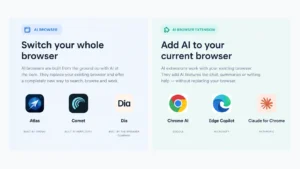
There are two very different categories here, and mixing them up is where most confusion comes from.
Standalone AI browsers — a whole new browser to install
ChatGPT Atlas (OpenAI) is a full browser built around ChatGPT, with an “Agent Mode” that can navigate sites and complete tasks — as of mid-2026 it’s macOS-only, and the agent features require a paid ChatGPT plan.

Perplexity Comet launched behind an expensive paid tier in mid-2025 but went free within months and now runs on Windows, Mac, Android, and iOS — currently the only major AI browser available on every platform.

Dia (from The Browser Company) leans into research and remembering context across tabs, but like Atlas, it’s Mac-only.

AI built into browsers you already use
You don’t necessarily need to switch browsers at all. Google has been rolling AI “auto-browse” features directly into Chrome for subscribers on its higher-tier AI plans. Microsoft has taken a similar path with Copilot built into Edge. And if you’re already a Claude user, Claude for Chrome is a browser extension — not a separate browser — that adds similar assistant capabilities on top of the Chrome you already have installed, without requiring you to change anything else about your setup.
What they can actually do today
Realistically: summarize long pages, answer questions about what’s currently on your screen without you having to copy-paste it elsewhere, compare information across multiple open tabs, fill out repetitive forms, and — in the more advanced agent modes — carry out multi-step tasks like researching options and completing a booking, usually pausing to ask for your confirmation before anything involving payment or login credentials.
What they generally can’t yet do reliably: complete complex tasks with zero supervision, or work identically across every website — sites that weren’t built with AI agents in mind can still confuse them.
The catch — what to know before you switch
Switching your entire browser is a bigger commitment than it sounds. Atlas and Dia are Mac-only as of mid-2026, which rules them out immediately if you’re on Windows or Linux. You’ll also be trusting a new company with a lot of visibility into your browsing — an AI browser, by design, can see and act on more of what you do online than a traditional browser does.
For most people, the lower-friction option is adding AI to the browser you already use — a Chrome extension or a built-in feature — rather than migrating everything to a new one. You keep your bookmarks, your saved passwords, your tuned setup, and you still get most of the assistant functionality.
Do you actually need one?
If your biggest browsing frustration is genuinely “I have to manually compare things across ten tabs” or “I keep re-explaining context to a chatbot in a separate window,” an AI browser or extension solves a real problem. If your actual bottleneck is more mundane — too many tabs open, a browser that’s slow — no AI feature fixes that better than just closing some tabs.
FAQ
Is an AI browser the same as ChatGPT or Gemini? No — ChatGPT and Gemini are AI assistants you talk to in a chat window. An AI browser embeds similar AI capability directly into the browsing experience, so it can see and act on the actual webpage in front of you.
Do I have to pay for an AI browser? It varies. Perplexity Comet’s core browser is free. ChatGPT Atlas is free to use, but its agent features that take actions for you require a paid ChatGPT subscription. Built-in options like Chrome’s and Edge’s AI features often sit behind a paid AI tier too.
Is it safe to let an AI browser take actions on my behalf? Most current AI browsers pause and ask for your confirmation before anything sensitive — logging into an account or completing a payment — rather than acting completely on their own.
Which AI browser should I try first? If you’re not ready to switch your whole browser, a Chrome or Edge extension is the lowest-commitment way to try the concept. If you want a full dedicated browser and use Windows or Android, Comet is currently the only major option that supports your platform.
Bottom line
An AI browser is exactly what it sounds like — your browser, plus an assistant that can read pages and take actions instead of just displaying them. Whether that means switching to an entirely new browser or just adding an extension to the one you already trust depends more on your operating system and how much change you’re comfortable with than on which product has the flashiest name.
Here you can read about “Kling ai vs Veo 3” and “Kling ai credits and pricing”